Community exclusive Events
When setting up an Event you are able to define which Access Groups have free access. You can also set different prices per group. To create an Event for your members only, pick Community under Visibility & Discovery.
Sample Community Event Set up
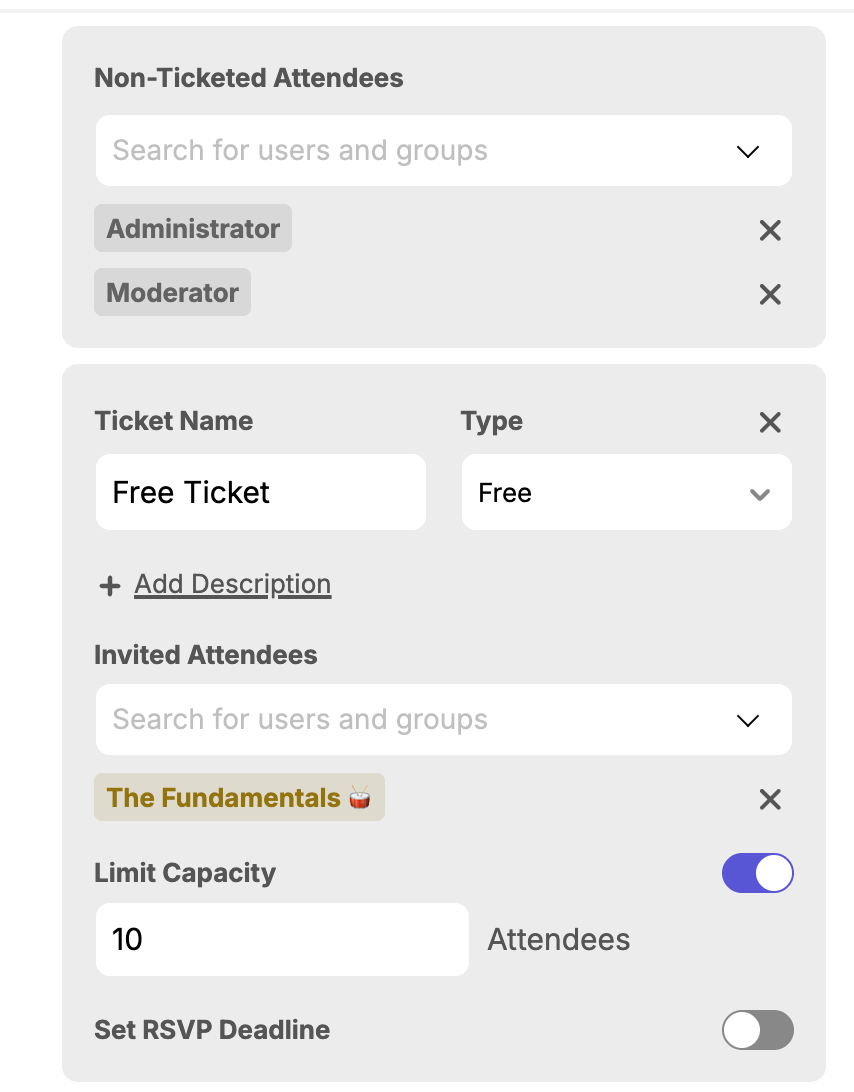
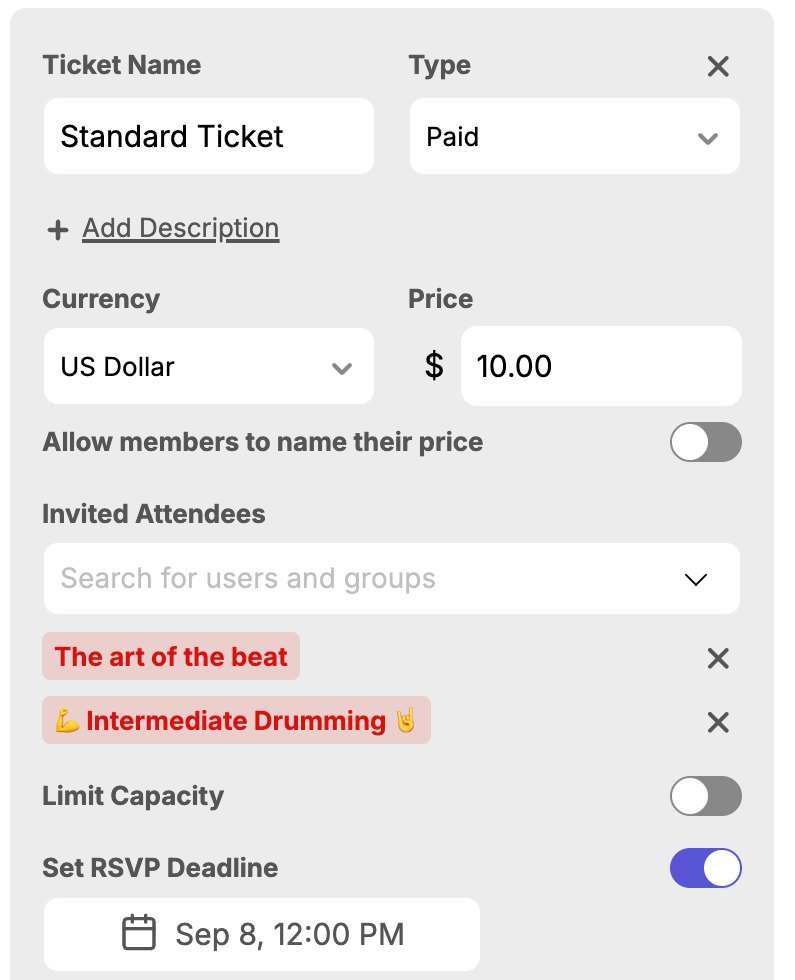
In this Event, only members from 3 groups are invited, and only 2 have to purchase a ticket. To recap:
✔️ Members from The Fundamentals can acquire free tickets (up to 10 slots)
✔️ Members of the other two groups can acquire a paid ticket but must RSVP until September 8th
✔️ Members with the Administrator and Moderator roles do not have to acquire a ticket.
Inviting the "User" role would give access for all users, so use Access Groups instead.
Administrators only see a Community Event if they're invited. The Administrator role doesn't bypass the invite list, so add Administrator to the Event's attendees if every admin should see it.
Public Events
This is an ideal option for increasing visibility when organizing a public event in your community. It allows both your community members and those who are not part of your community to participate. To create a Public Event, pick Public under Visibility & Discovery.
Advanced Public Event Settings
Add a community sign up button enables you to select a Sign Up Link to tie in the Event page so external guests can sign up to your community.
Recommend Other Events will display other public events hosted by your community after a guest RSVPs.
Sample Public Event Set up
In this Event, members of the General Public must pay for a ticket to access. They will have to RSVP until September 1st.
When you are finished creating your Public Event, you will have an option to share it with your audience through the "Share Event" button.
Only Public Events automatically generate the "Share Event" invitation link - for Community-only Events, copy the Event URL from your address bar.
Learn more about how to create an Event